Authorization
1. Create an API Key
After you login to your Hibachi Account from the UI, click on the gear button on the top right corner, then select API Keys
Click on Create API Key, then follow the definition below to choose the correct setting for your API Key, and click on Generate
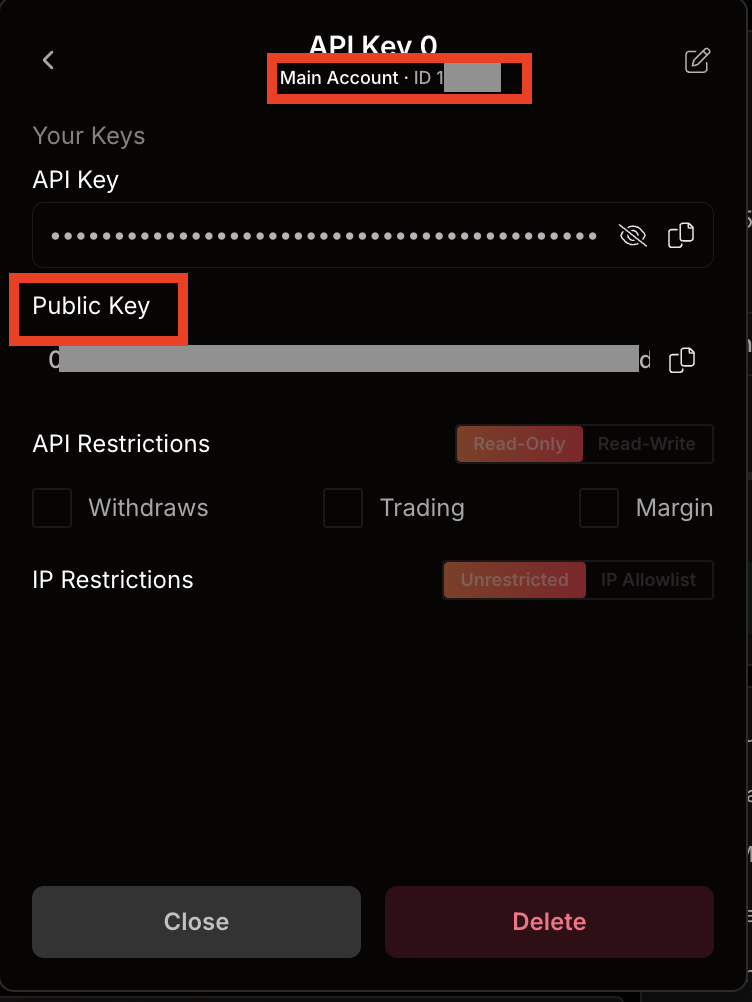
- Select Account: This is to choose the account you want to associate with this API Key. Note you cannot use an API Key you created to access another account you own.
- Name of the API Key: a name you want to associate with this API Key
- API Restrictions: you can choose if this API Key will have
read-onlyorread-writepermissions.
IMPORTANT, by default aread-onlypermission is selectedread-writepermissions:- Trading: This API Key will be place orders
- Withdraws: This API Key will be able to withdraw funds from the exchange to outside destinations
- Transfers: This API Key will be able to transfer funds to other sub-accounts related to the main account. This will not allow transferring to other users OR withdrawing unless the withdraw permission is present
On the next page, save the API Key and Private Key to a safe vault (e.g. password manager etc).
NOTE: You will ONLY be able to see the Private Key during generation, so make sure you save it before exiting the pageClick on Next, save below information that will be needed for API Endpoints interaction together with your API Key
- Account ID: you will see
ID: XXXbelow your API Key Name - Public Key
- Account ID: you will see
2. API Authorization
In every API Request Header (except /market or /ws/market), you supply the API Key with --header 'Authorization: '
3. Security Headers in request
- User-Agent: None null value
- Accept
- Content-Type